
Add to Home Screen
Add Zigo to your home screen for a full-screen, distraction-free experience — and one-tap access to your daily reviews. No app store needed.
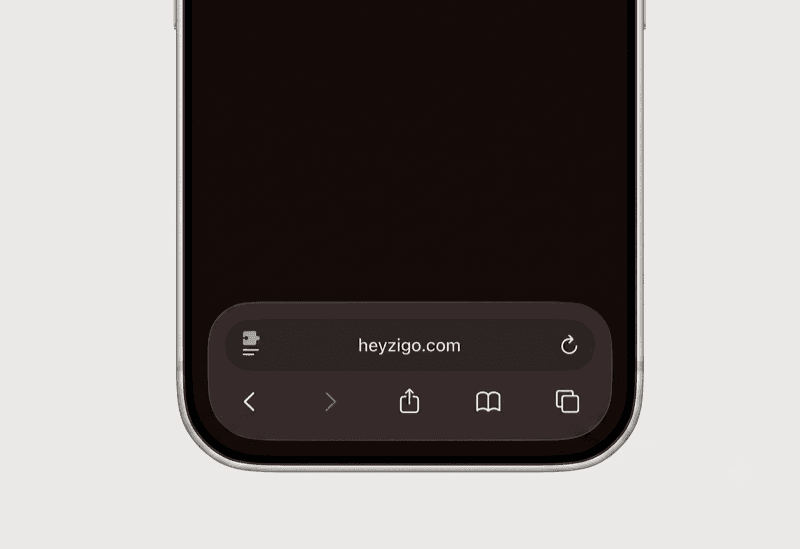
1. Tap the Share button
Open heyzigo.com in Safari. Then tap the Share button in the toolbar at the bottom of the screen.
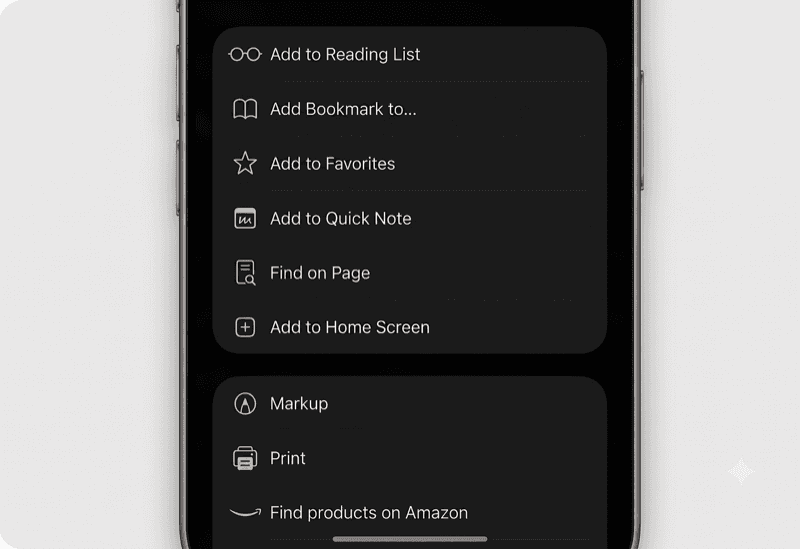
2. Tap Add to Home Screen
Scroll down in the share sheet and tap Add to Home Screen.
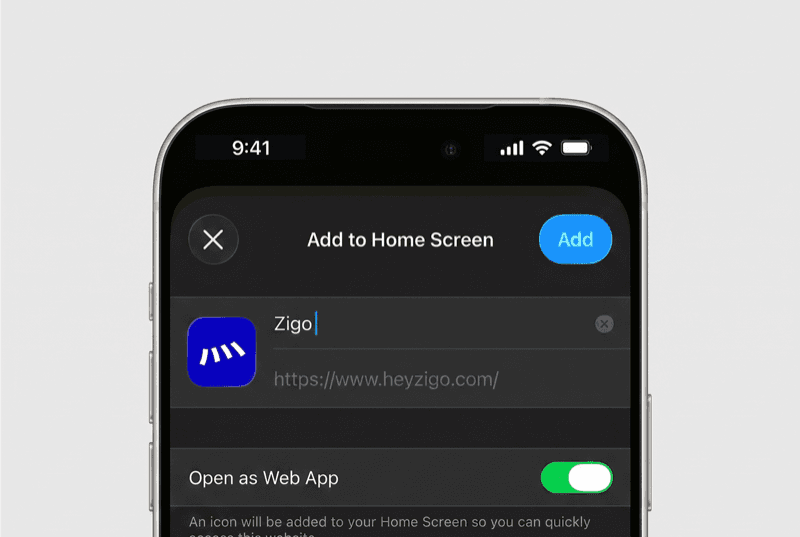
3. Tap Add
Check the URL reads heyzigo.com — if it’s something else, go back to that page and try again. Make sure Open as Web App is turned on: this lets Zigo run in its own full-screen window, without Safari’s address bar or tabs. Tap Add.
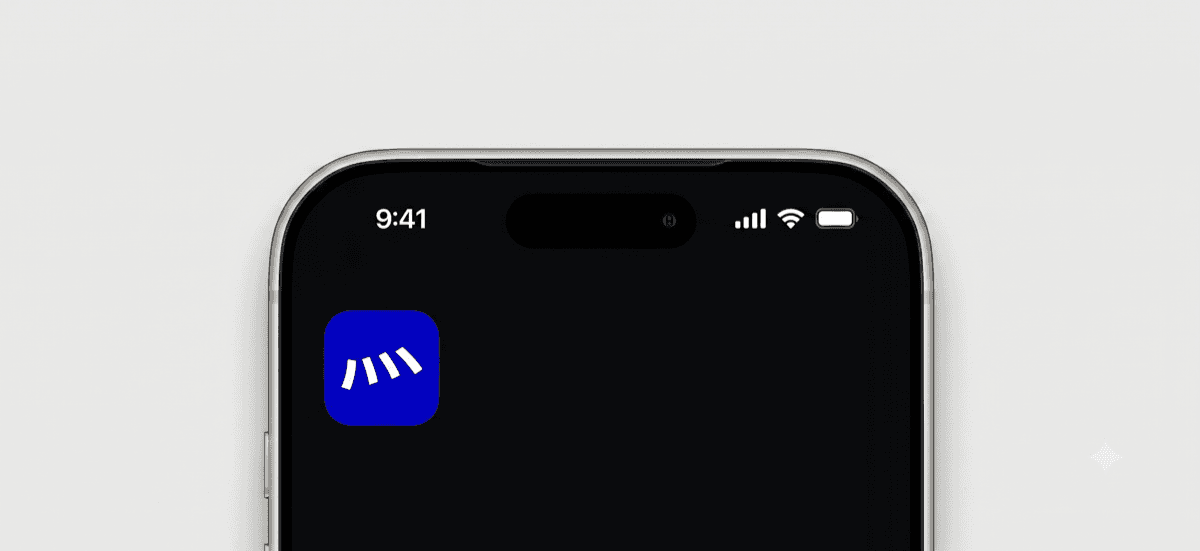
That’s it — Zigo will appear on your home screen as an app icon.
Android
Open heyzigo.com in Chrome, tap the three-dot menu, then tap Add to Home screen (or install app if you’re prompted). Zigo appears on your home screen and opens in its own window.